
How it works
Three steps.
Minutes, not days.
Pobble does the counting. You stay in control.
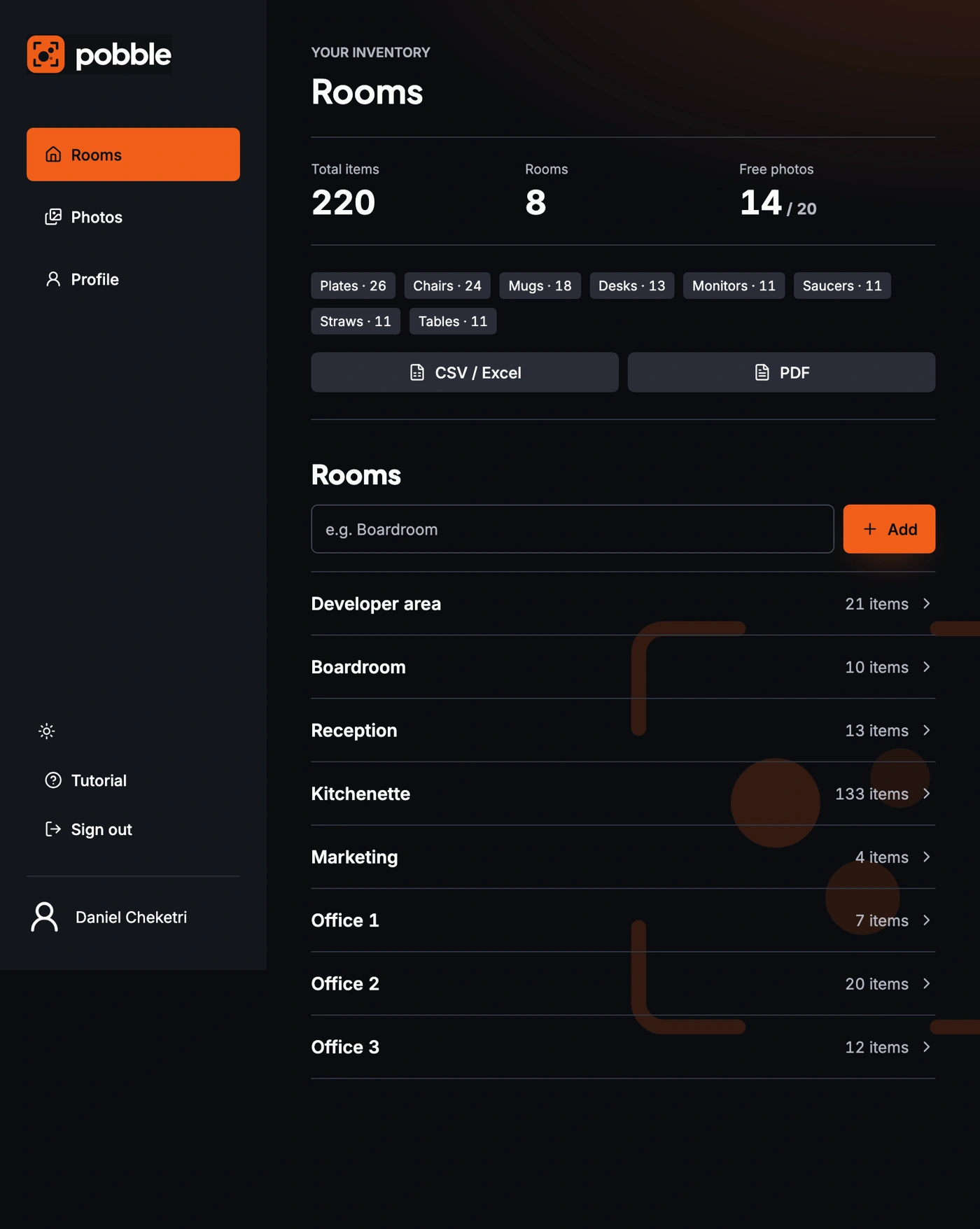
01 / Add a room
Give every space a name.
Start with Boardroom or Kitchenette. Your items and photos stay organised by room, with totals visible as your inventory grows.
New to Pobble? A short four-step tutorial helps you get started after login.
02 / Take a photo
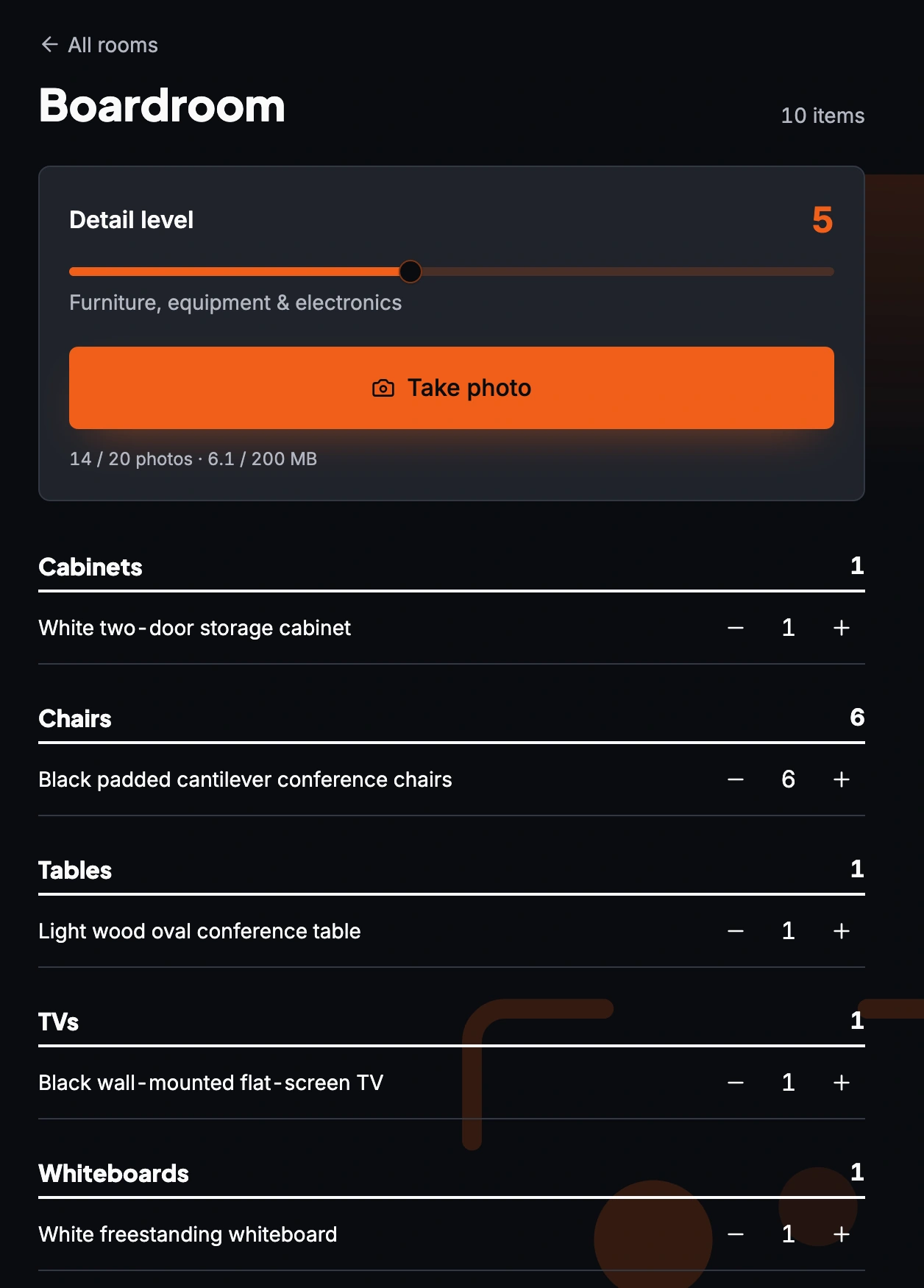
Choose how closely we look.
Detail level 1 counts large items such as desks and cabinets. Level 10 includes everything visible, right down to mugs and stationery.
Take clear, well-lit photos. Avoid photographing the same items twice: counts from each photo in a room are added together.
03 / Check & export
Your count. Your final say.
Review the result before saving. Change categories and descriptions, use + and − to adjust quantities, and remove anything that does not belong. AI can miss or misidentify objects, so always check important counts.
CSV / Excel
Open your CSV in Excel or another spreadsheet for moving schedules and asset registers.
PDF with photos
A branded, photo-backed room inventory to share with your mover, insurer or finance team.
A guided start
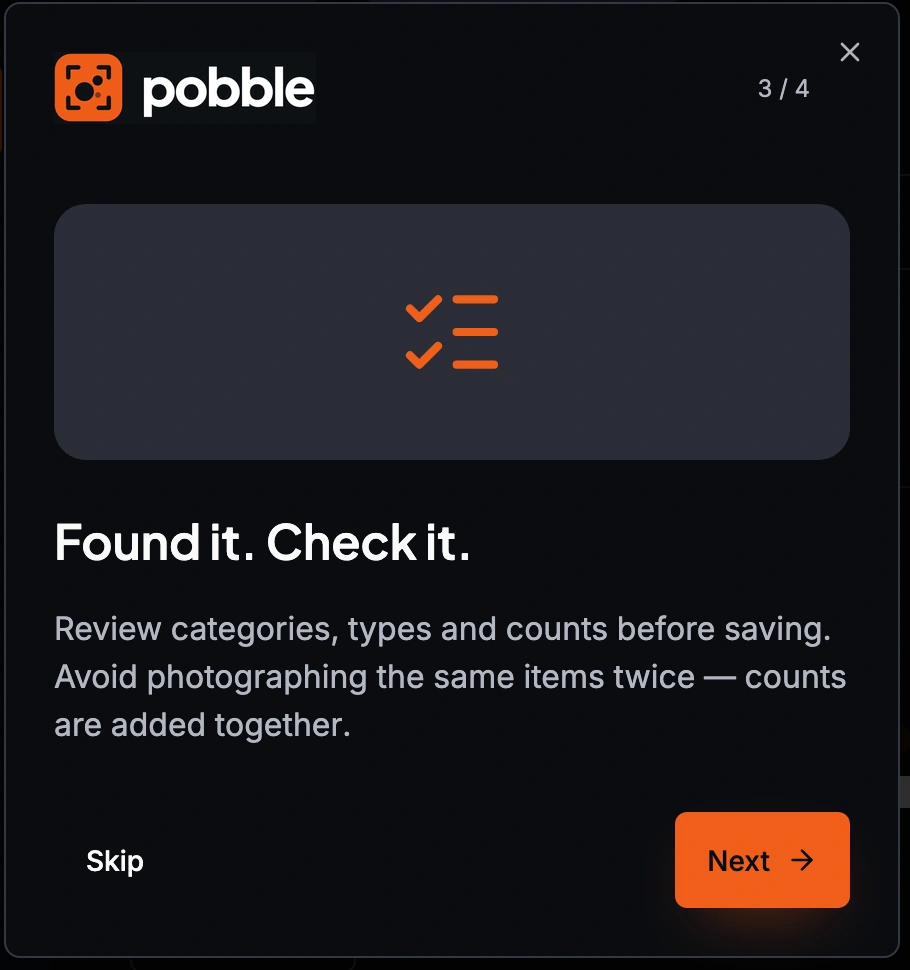
Found it. Check it.
Pobble’s built-in tutorial walks you through rooms, photos and reviewing the result. A little guidance, right where you need it.